
Old and New
Of all the current mass-produced computers, the Raspberry Pi 400 is the closest you can get to the wedge-shaped home computers of the 1980s. Add a C64 emulator, and the combination of new and old lets you dive into old-school BASIC programming and gaming.
Installing and properly configuring an emulator is a time-consuming task, and then your emulator typically runs in a window, which completely spoils the retro look. Of course, in most cases, you’ll be able to change settings in order to better recreate the historical look and feel, but getting it just perfect takes some time.
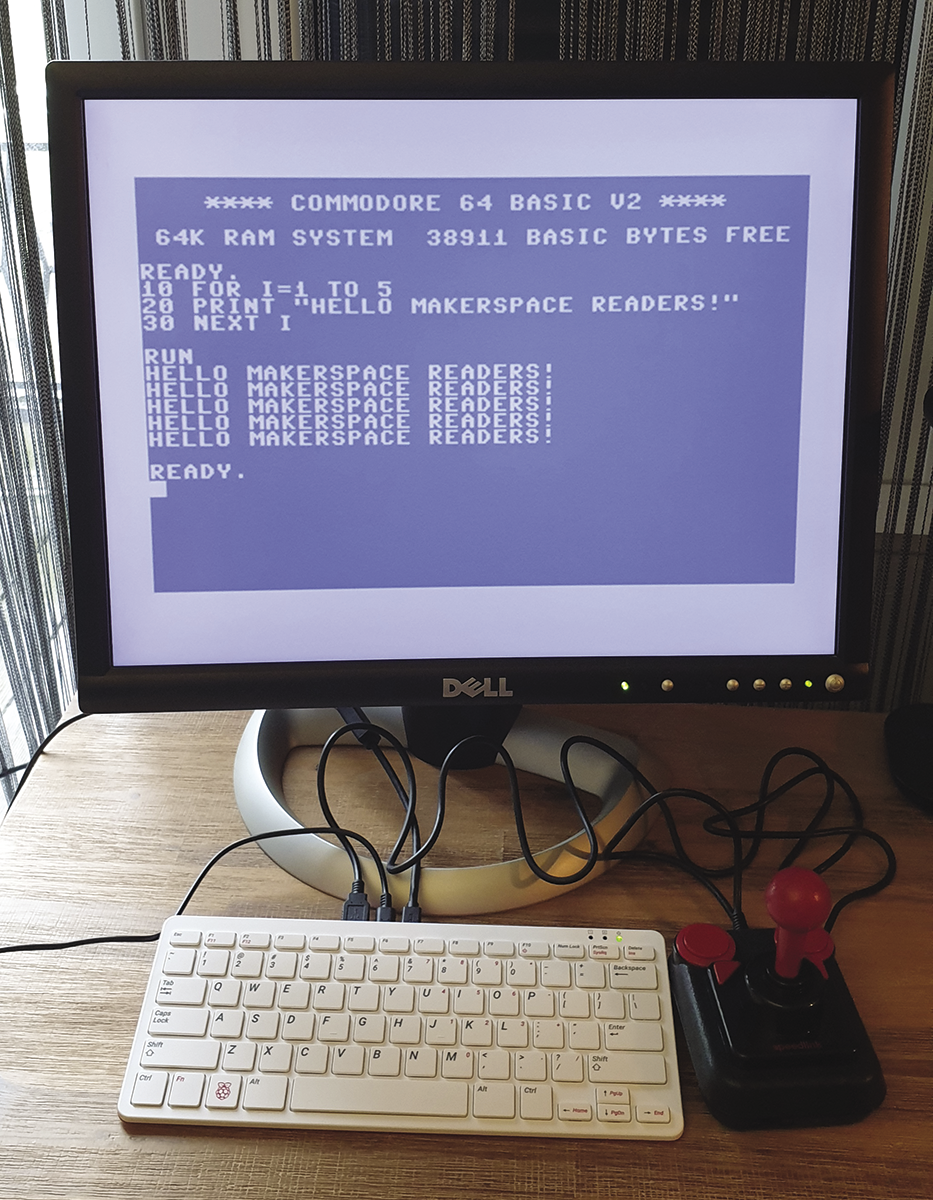
For one specific combination, namely the C64 emulator VICE running on a Raspberry Pi, Carmelo Maiolino has gone through the effort of setting up Combian64, a great Linux image that runs out of the box on old and recent Pi models. You just write the image file to an SD card, put that into your Pi’s SD card slot, and turn on the power – it’ll then take 28 seconds until you see the C64 start message (Figure 1). At least that’s the boot time I have measured on my Raspberry Pi 400 , which I consider the optimal Pi model for running this kind of software: The built-in keyboard makes it just so much better.
There’s no X server running in the background that might let other application windows show up by accident: VICE 3.5 runs in framebuffer mode. For this article, I’ve used Combian64 3.5.3, which is the first version that supports the Raspberry Pi 400 out of the box. Released in September 2021, it is based on Raspbian Buster (10.7), running Linux kernel 5.4.83.
Once the emulator is up and running, there’s no need to guess which key might put which character on the screen: The x64 program (one of the emulator programs in the VICE package) has a perfectly configured key map. Of course, some characters don’t exist on the C64. For example, typing a backslash (\) yields a pound character, and attempts to enter curly brackets ({}) will give you square ones ([]) because the C64 doesn’t recognize these characters either. You can have a look at Wikipedia’s PETSCII entry to see what symbols the C64 supports.
Accessing the Linux System
While the Combian64 distribution is meant to run VICE and nothing else, it is still a full Linux system. You can access Linux via the pre-configured SSH server. If you plug an Ethernet cable into the Pi and have an SSH client installed on another computer that is connected to the same network, type
ssh -t pi@combian bashand enter the default password (raspberry) to connect to the Raspberry Pi. Note that you need both the -t (TTY) option and the bash argument because the account is configured to start the emulator on login. (When user pi logs in, the Bash shell runs /home/pi/.profile, which calls the /usr/local/bin/bootmachine script that in turn runs/usr/bin/x64.)
From there, you could, for example, add additional software via the APT package manager. The standard configuration tool raspi-config is also available this way.
If your Pi has WiFi, you can use that instead of an Ethernet connection: Simply set it up in raspi-config via System Options | Wireless LAN. You need to know your SSID and password. The config tool cannot show a list of available WiFi networks.
If you have no second computer or cannot find the Pi via the combian hostname, use a Bash shell on the Pi: Exiting the emulator via F10, Quit emulator will drop you in a shell. For general Pi configuration, you can now run
sudo raspi-configDisks and Tapes
When all you want to do is play around with the BASIC interpreter, there’s no need to look into the VICE features that you can access by pressing the F10 key. However, if you also want to play the old games, you need to load them using the following steps:.
- Boot Combian64 with a USB joystick plugged in. In my tests both the Speedlink Competition Pro as well as the similar-looking TheC64 Joystick (made by Retro Games Ltd.) worked well. Gamepads should be fine, too, but the proper game controller for a C64 is a joystick.
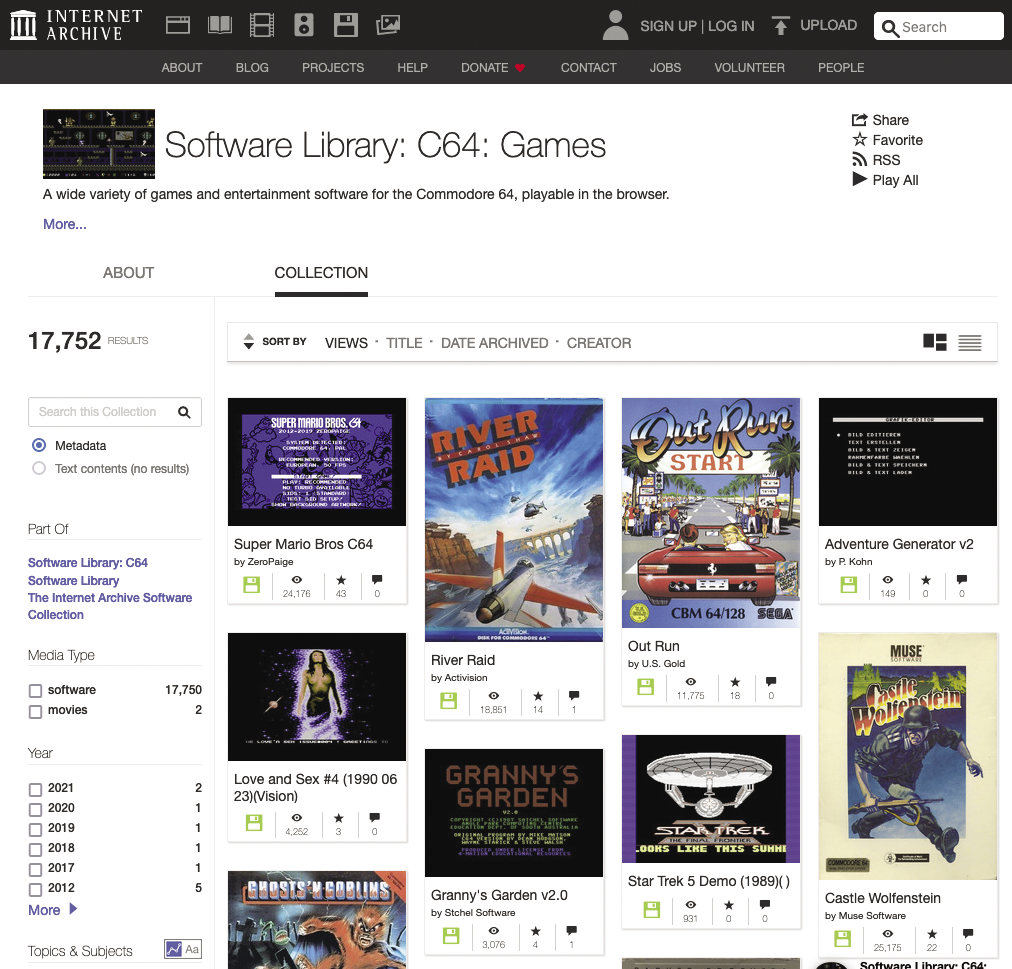
- Get some C64 game files, for example, from the Internet Archive (Figure 2). You’ll typically find files with a
.d64extension, which are floppy disk images. Transfer them to the running Combian64 system, either by putting them on a USB stick and copying them over or by remote copying them from another machine. Combian64 runs an SSH server that will accept connections with the default Raspbian credentials (username: pi, password: raspberry). In my tests, I could simply use the hostname combian to talk to the Raspberry Pi. If that does not work for you, type
/sbin/ifconfig | grep inetin the Pi’s shell to find its IP address.
Place the game files in the home directory /home/pi – or in its combian64/games/ subfolder if you plan to transfer a lot of files or just like to keep your filesystems tidy.
- Load the disk: In the emulator, press F10, select Drive | Attach disk image to drive 8, and then pick the right image file. Press F10 again to get back to the emulation and then run the game the usual way. For example, fetch the directory via
LOAD"$",8
LIST
and then load and run the right file (Figure 3). Give the system some time to load from disk: In my tests, it sometimes took a minute or longer to fully load a game – the C64 was known for its notoriously slow floppy drive.
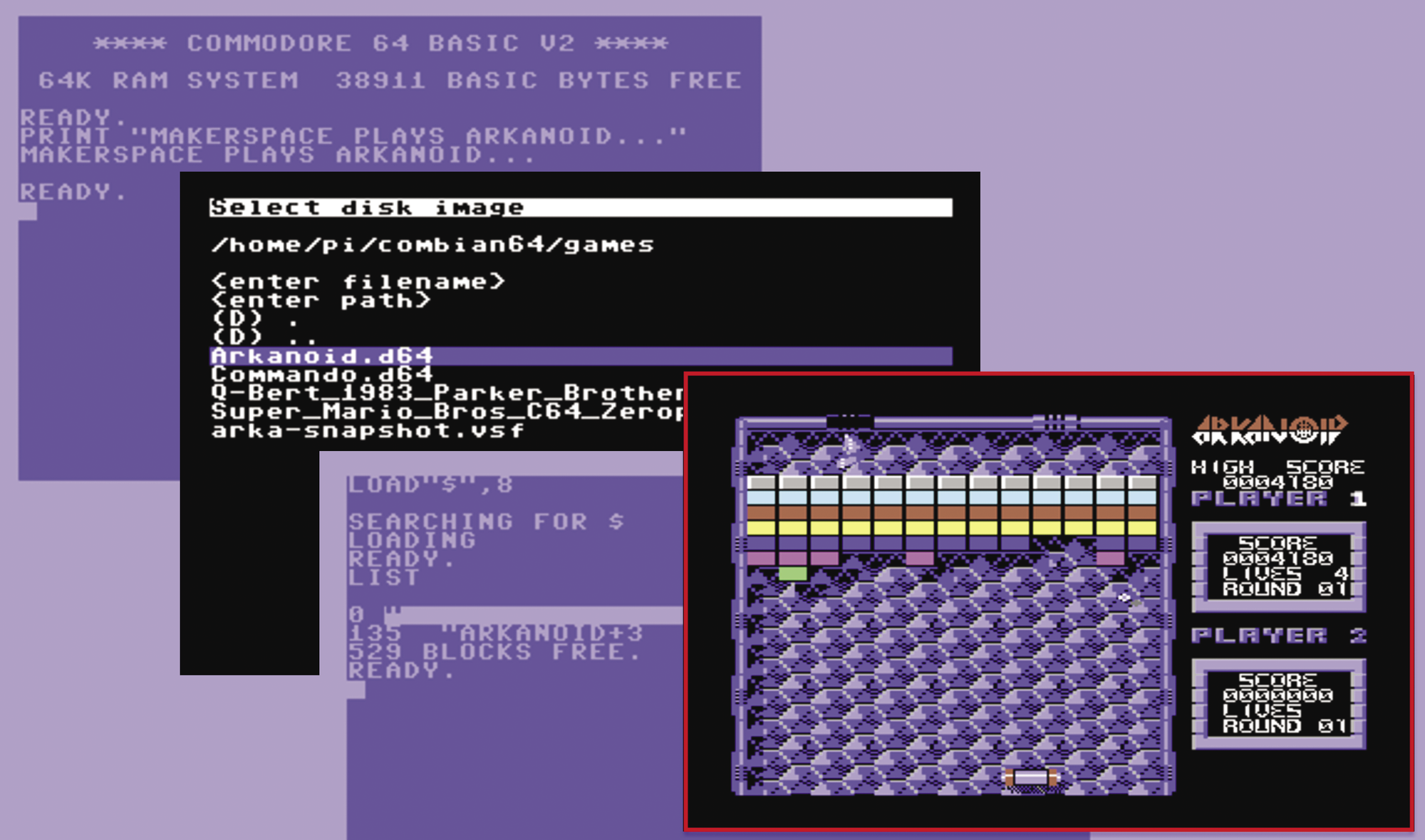
.d64 disk image in the VICE menu and start the game like you would on a real C64.If your joystick doesn’t work, the game might expect it “in a different port.” Try changing the port via F10, selecting Machine settings | Joystick settings, and enabling the Swap joystick ports option.
Authentic Keyboard
If you prefer a keyboard layout that is closer to the original C64 keyboard layout, you can press F10, select Settings management | Active keymap | Positional. If you’re happy with that layout, make it permanent via F10 and Settings management | Save current settings.
In a 20-minute video [5], retro YouTuber Steven Combs shows how he’s applied vinyl key cap stickers and a self-made Combian pi/400 logo sticker to the Pi 400 keyboard (Figure 4) – after that modification you can quickly find all the PETSCII characters without relying on an online table.

Menu Power
You can change most Combian64-specific settings with a few commands if you know how to use the Bash shell on Linux. If you send Maiolino a small donation via PayPal, he’ll reply with instructions on how to download and install a menu add-on that makes configuration more user-friendly. Simply follow the instructions you get by mail; after applying the update, your Pi will reboot.
With the menu add-on installed, whenever you exit the emulator, the menu appears (Figure 5). You can use it to make some changes and restart the emulator by selecting the corresponding menu entry with R followed by Enter or shut down the machine with S and then Enter. Alternatively, Q followed by Enter will quit the menu and drop you in the Bash shell. From there, run menu to get back into the Combian64 menu.
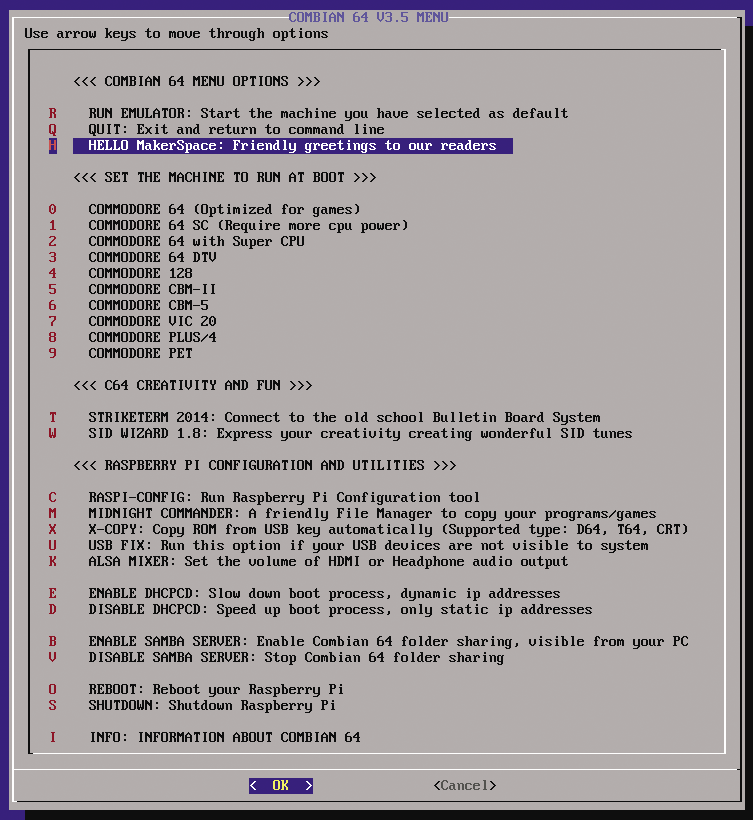
If you switch to a different emulator (this VICE installation also handles the Commodore 128, as well as older machines such as the VIC20, the Plus/4, and the PET), you should note that the keyboard has not been set up for those other machines.
Assuming that you know how to make changes to a Bash script, it is quite simple to add your own entries to the menu by running
sudo vi /usr/local/bin/menulike I did for this article. You only have to add a few lines to display an extra menu entry and describe what the machine should do if you select it. Looking at the entries that already exist teaches you how that works.
Final Thoughts
The Raspberry Pi is powerful enough to emulate various machines. The next article in this issue discusses the PiMiga distribution that turns your Pi into a Commodore Amiga, which is a much more complex machine. PiMiga requires some preparation: For example, you have to buy the Kickstart ROMs or extract them from your original Amiga machine and transfer them to the SD card to get the emulator running.
This is not the case with Combian64. Maiolino’s system shines because it is surprisingly well-configured. You simply insert the SD card, turn on the Pi, and you can type away on the C64. Every owner of a Raspberry Pi can do that with no advanced Linux knowledge required. Combian64 offers true plug-and-play.